Extended
Give your work more room.
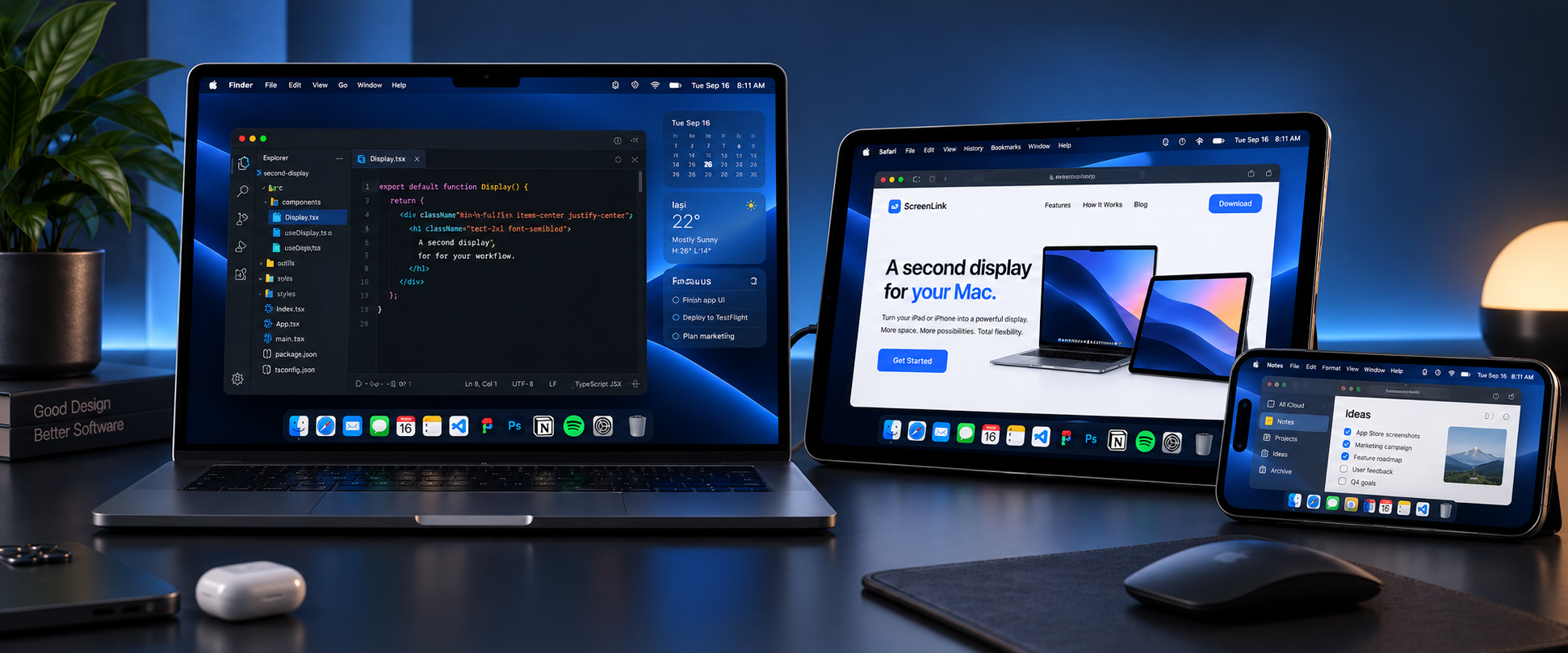
Add a separate desktop on your iPad and keep notes, chats, docs, or reference material beside your main screen.
Turn the iPhone or iPad you already own into extra space for your Mac. Open ScreenDock on both devices, connect over your local network, and keep working.
Get started
No cables, no account, no setup wizard — about a minute from opening the app to an extra screen.
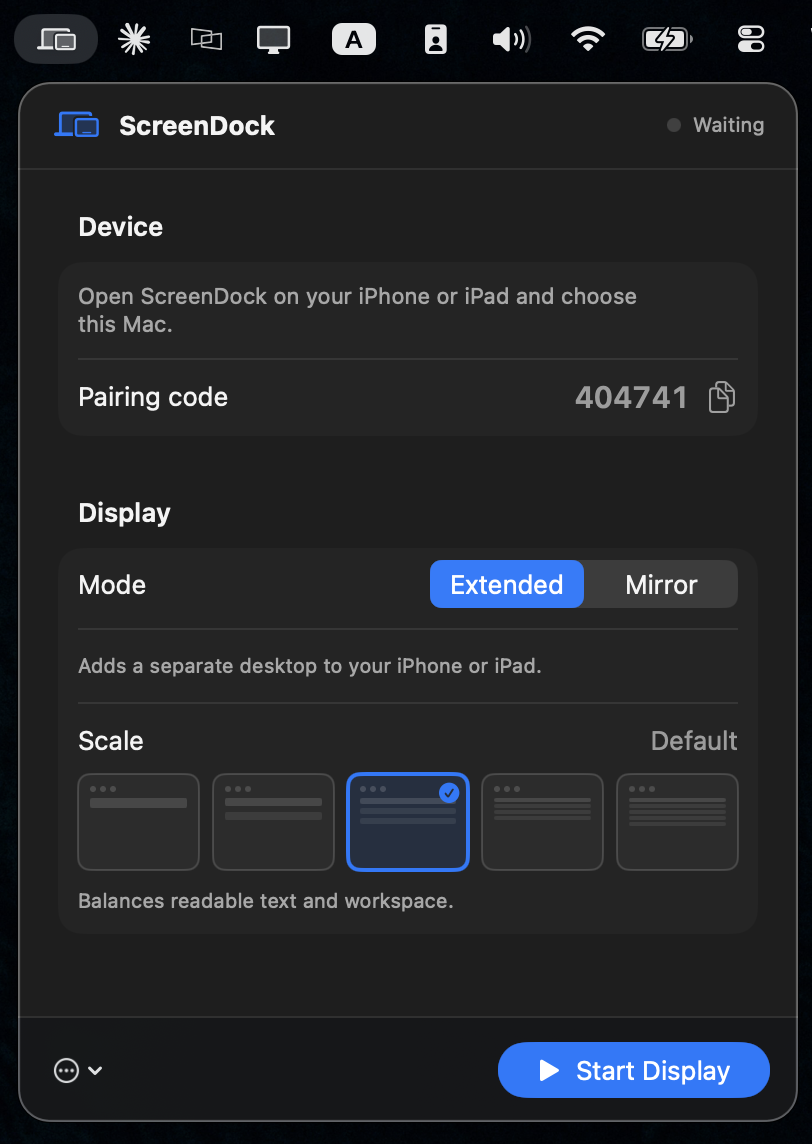
Click the ScreenDock icon in the menu bar. It starts looking for nearby devices and shows a 6‑digit pairing code.
Lives in the menu barOpen the app — it finds your Mac automatically. Tap it and enter the 6‑digit code once; it stays paired after that.
Paired once, rememberedChoose Extended for more room or Mirror to copy your screen, pick a size, then tap Start Display.
Tap Start DisplayTwo ways to use it
Pick what you need straight from the ScreenDock menu on your Mac.
Extended
Add a separate desktop on your iPad and keep notes, chats, docs, or reference material beside your main screen.
Mirror
Show the same picture on your iPhone or iPad when you want a closer look or need to share what is on your Mac.
Controls on your Mac
Open ScreenDock from the menu bar, choose Extended or Mirror, pick a comfortable size, and start your display. It stays out of the Dock and out of your way.
Hardware H.264 with automatic 30–60 fps, tuned so text stays crisp.
Connects over your local network and can prefer a wired route when available.
Matches your device’s pixels for a native, full‑resolution workspace.
No cloud, no account. The picture goes straight between your devices.
Private by design
Your Mac sends the picture directly to your iPhone or iPad over your local network. Nothing is uploaded to an online account or stored by ScreenDock.

Get ScreenDock
Install ScreenDock on your Mac and on the iPhone or iPad you want to use as a display.

Requires macOS 14 or later. Supports Apple silicon and Intel.